|
|
Purchase CZ Coin | Crashzone 1.1 Web | Crashzone 1.1 App | ORM | ARNIE | PNET | Partscheck | Audatext | Estimage |


Crashzone App 1.1
iOS / Android
User Manual
Version 1.0.0
17 April 2026
|
|
|


Summary of Features
- Account : Sign Up, Active Account
- Login : User Admin and Normal User
- Settings
- How to take a Photo
- View Quote
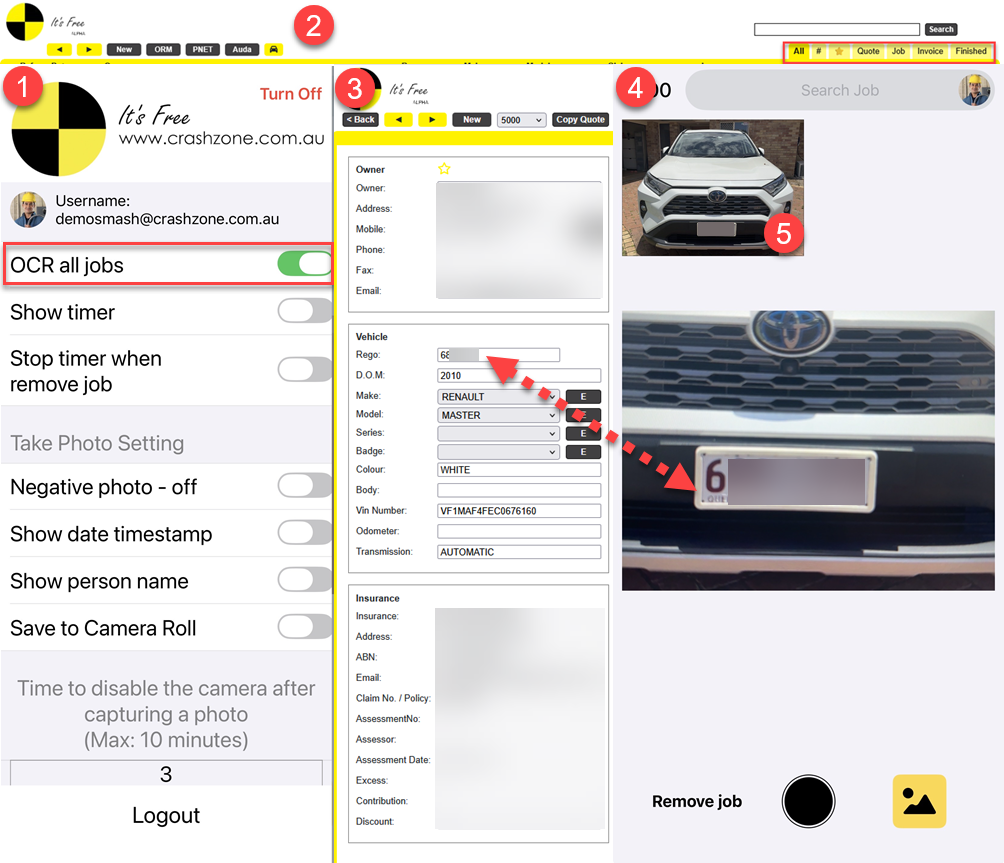
- OCR Number Plate
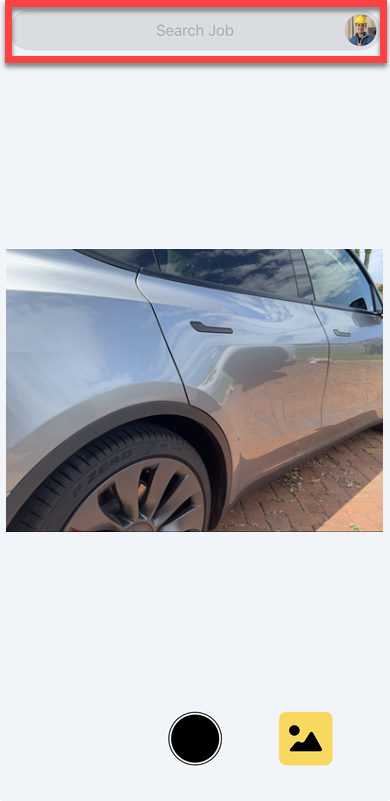
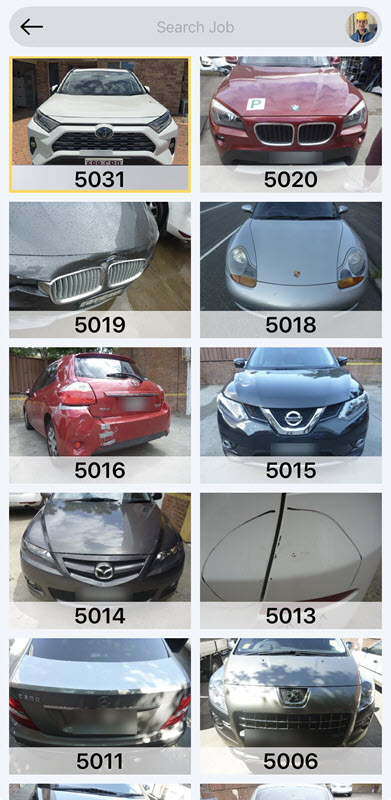
- Search Job
-
Sign Up
- Enter a valid email address.
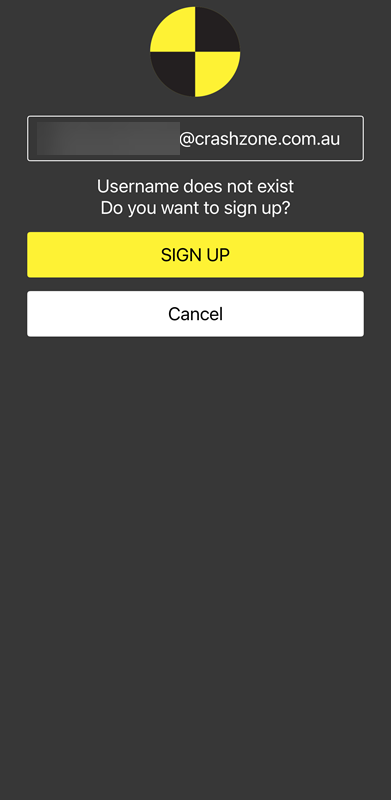
- If the email is not registered, the Sign Up page will appear.
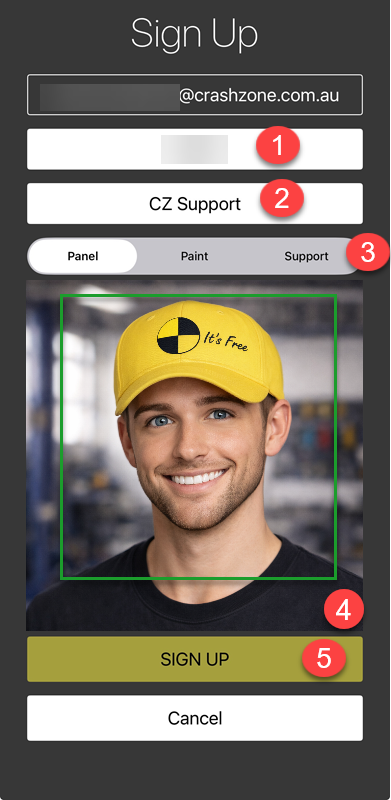
- Enter the Company ID .
- Enter your full name .
- Select the account type (Panel, Paint, or Support).
- The camera will automatically detect your face and take the photo. If you want to retake it, tap the photo.
- Click the Sign Up button.
-
Active Account
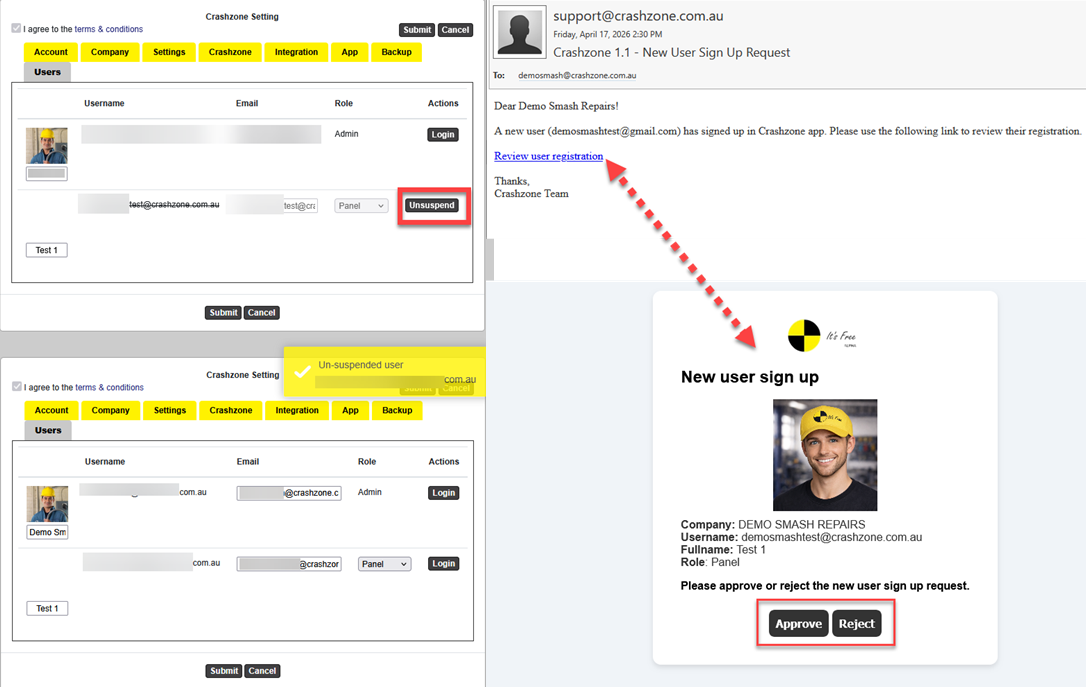
- After signing up, the system will send a notification to the company email address.
Option 1: Email
- Open the email and click the link to go to the website, where you can Accept or Reject the request.
- If Approve , the user will be activated and a login QR code will be sent.
Option 2: Crashzone Website
- Log in to the website, go to Settings > Users, and click Unsuspend for the newly registered user to activate the account.
- Then return to the app and log in.
-
Login User Admin
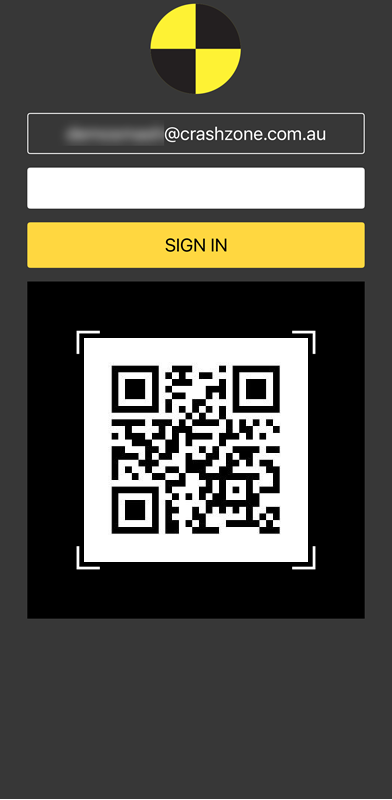
- Enter your username, then click Sign In .
- If your username is admin , the app will show a password field for you to enter before signing in.
- After a successful login, your username/email will be saved even if you log out.
-
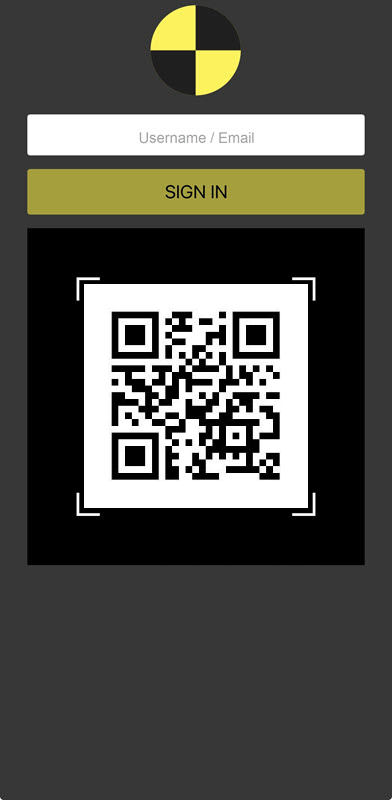
Login Normal User
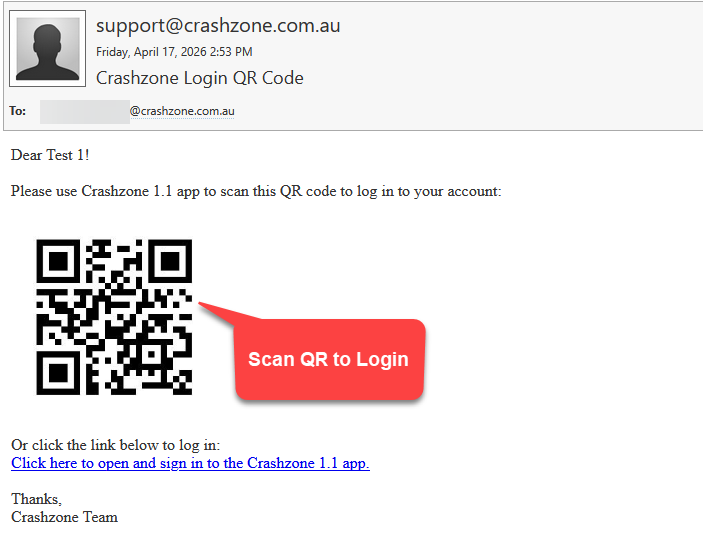
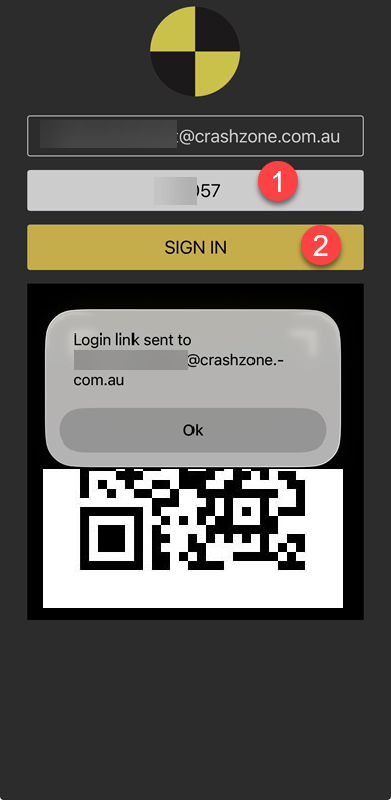
- Enter your username, then enter the Company ID, and click Sign In .
- The system will send you an email with a QR code that you can scan to log in.
|
|
------------------------------------------------------------------------------------------------------------------------------------
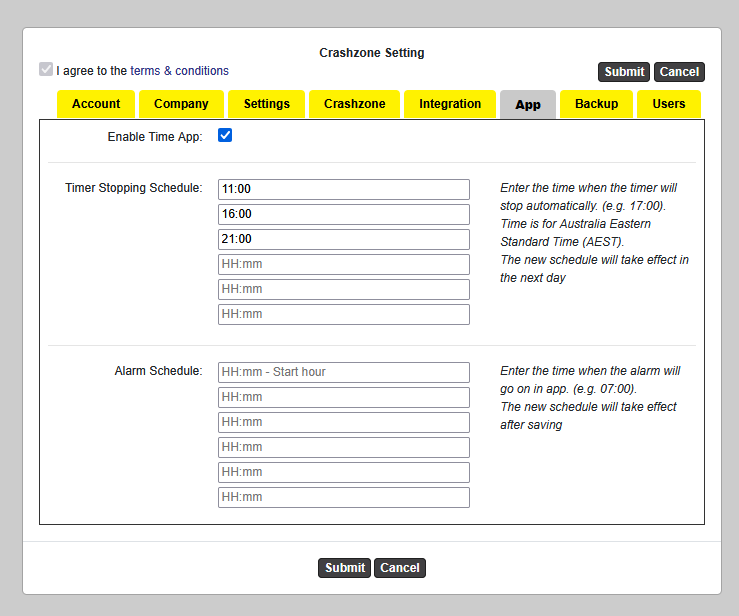
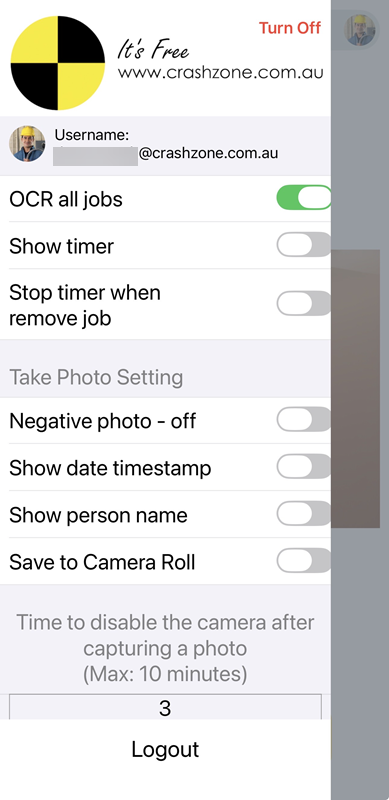
Disable Show Timer
Enable Show Timer
In Settings > App , set times for the timer to stop automatically.
The timer will stop at each set time. Users must start the timer again.
|
|
|
---------------------------------------------------------------------------------------------------------------------------------------------------------------------------
---------------------------------------------------------------------------------------------------------------------------------------------------------------------------
---------------------------------------------------------------------------------------------------------------------------------------------------------------------------
|
-
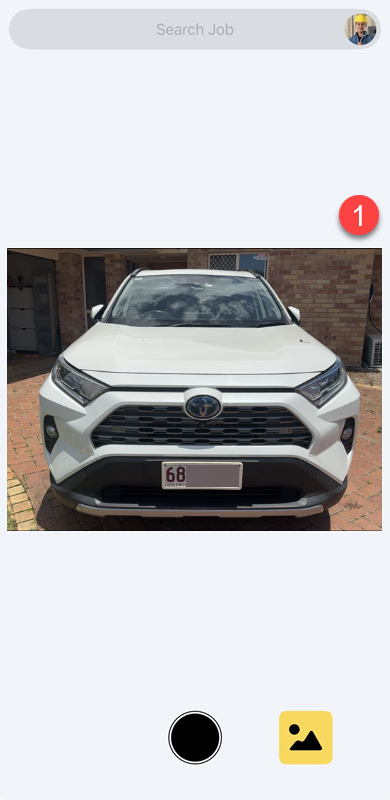
How to take a Photo
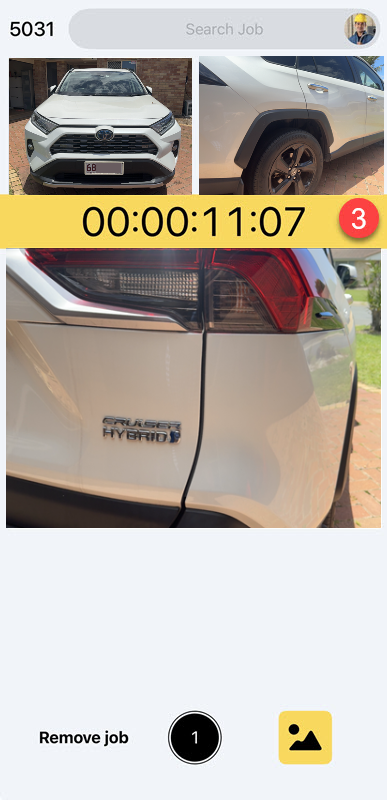
Option 1: Job selected
- Search a Job > Tap Select a job.
- Take a photo.
- The photo uploads automatically.
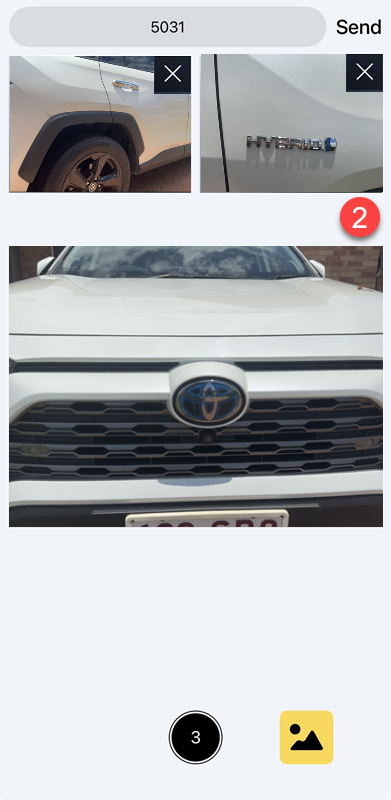
Option 2: No job selected
- Take a photo.
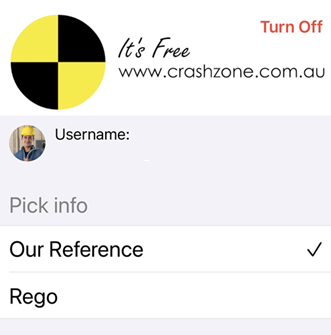
- Enter Our Ref and tap Send.
- Photos will upload and the job will be selected.
- After the first Send, the app will display the job matching the Our Ref, and when you take a photo, it will upload automatically without needing to tap Send again.
-
View Quote
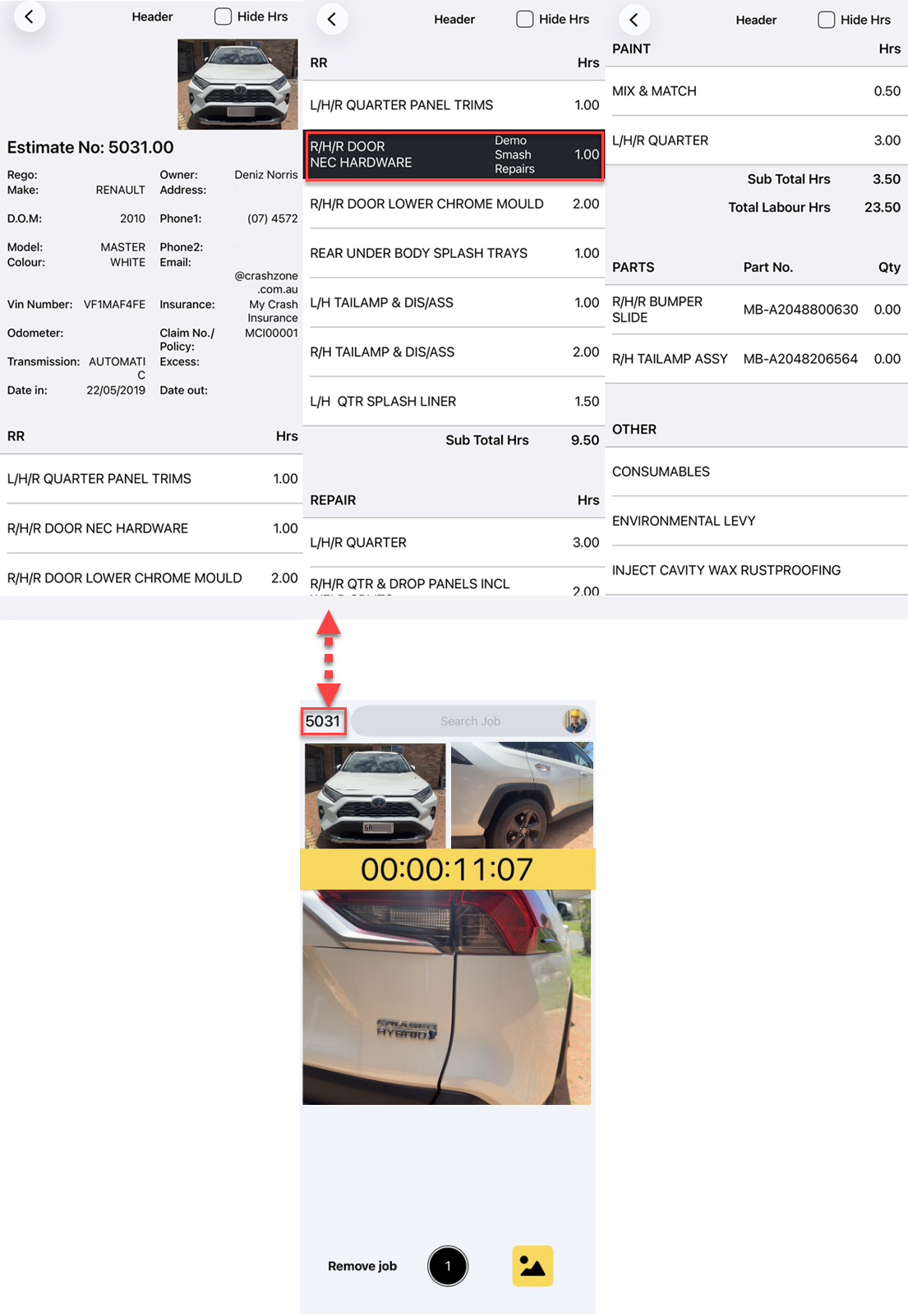
- You can t ap the reference number in the corner to open the quote view and see its details.
- On this page, users can mark completed items by tapping the quote items (the selected line will turn black), and the system records who did each action for later reporting.