Purchase CZ Coin | Crashzone 1.1 Web | Crashzone 1.1 App | ORM | ARNIE | PNET | Partscheck | Audatext | Estimage |


Setup PNET
- PNET user name and password is required for setup, these details are the same as used to login to the PNET portal.
- Please contact support@crashzone.com.au for setup PNET Details
- Note: Only use AudaNet or PNET. Using both may create duplicate jobs.
Sending a Quote & Photos
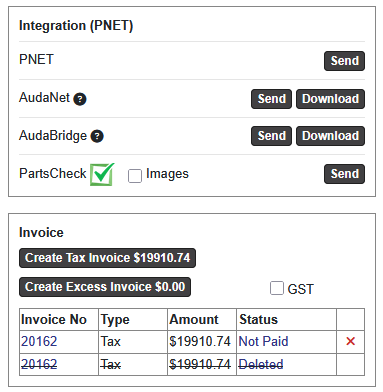
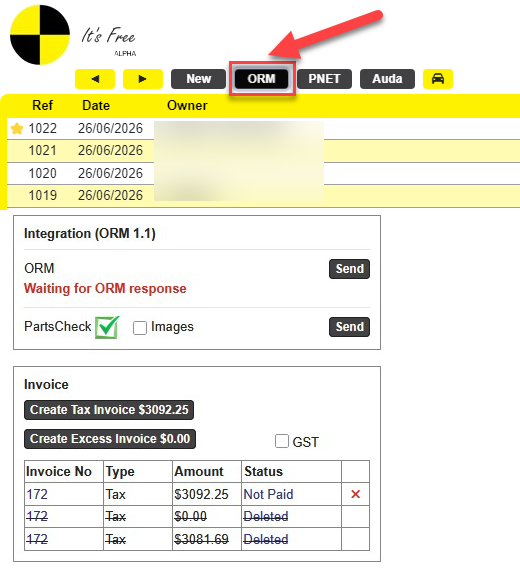
Supplementary QuoteOnce the main quote has been authorised, simply add the supplementary items below the existing quote and click Send to ORM again. Sending an InvoiceOnce the quote has been authorised, return to the Details page, create an invoice, and click Send to PNET again. | |
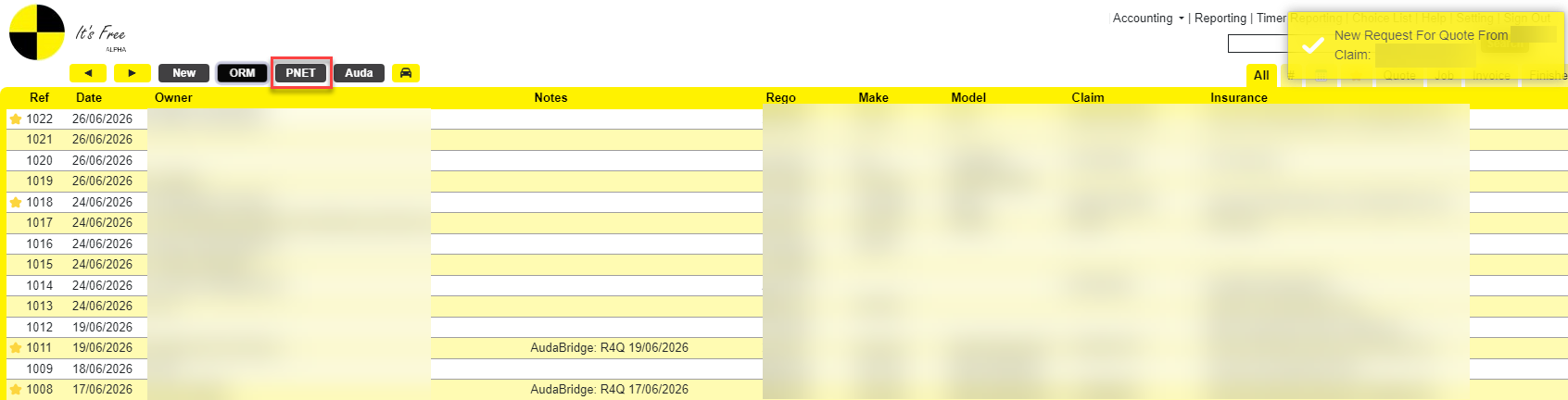
Receiving Responses from PNETAfter sending the job successfully, please allow some time for PNET to process it and return a response. To receive messages from ORM, return to the Main page and click the PNET button. |