Purchase CZ Coin | Crashzone 1.1 Web | Crashzone 1.1 App | ORM | ARNIE | PNET | Partscheck | Audatext | Estimage |


Estimage Online & Offline
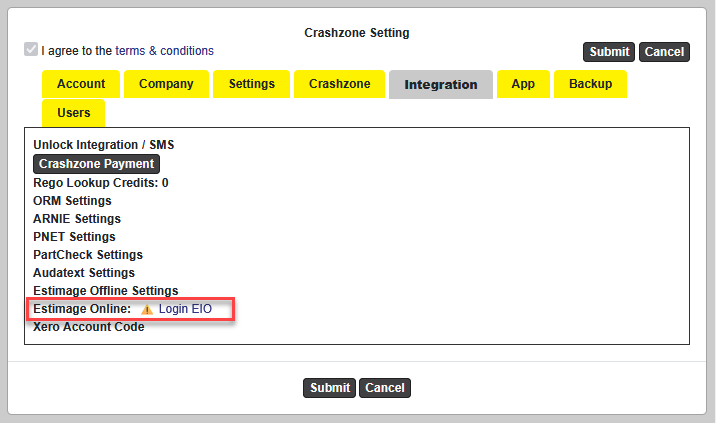
Setup Estimage Online
Setting > Integration > Estimage Online Settings > Click ‘Login EIO’
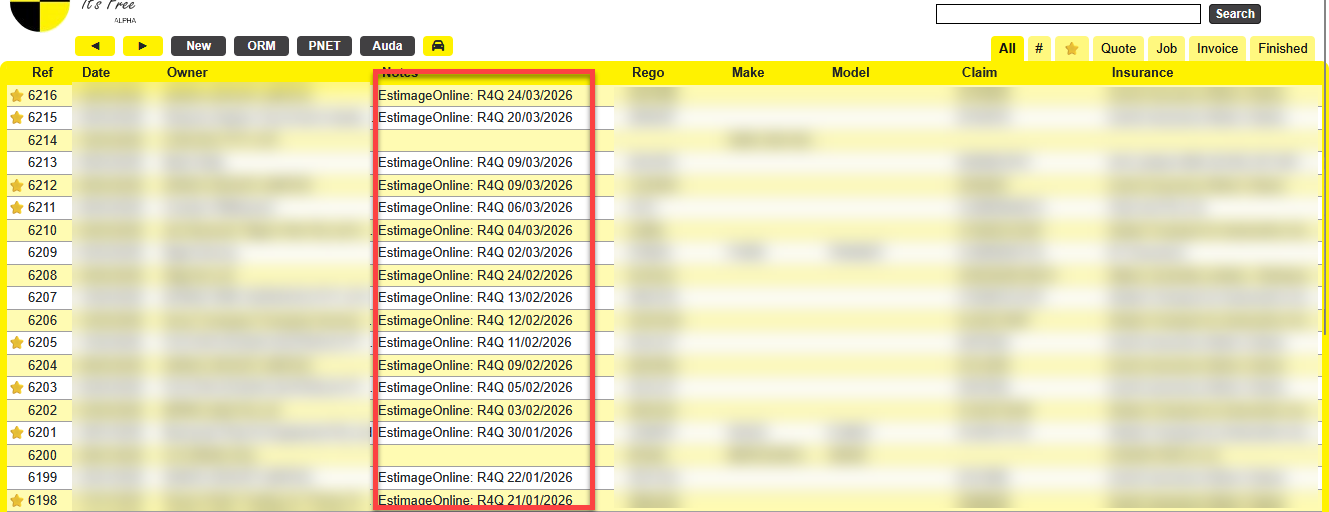
Enter your username and password. Once logged in successfully, Crashzone will automatically receive a new job from Estimage.
* You can select the job, go to the details page, and send a quote.
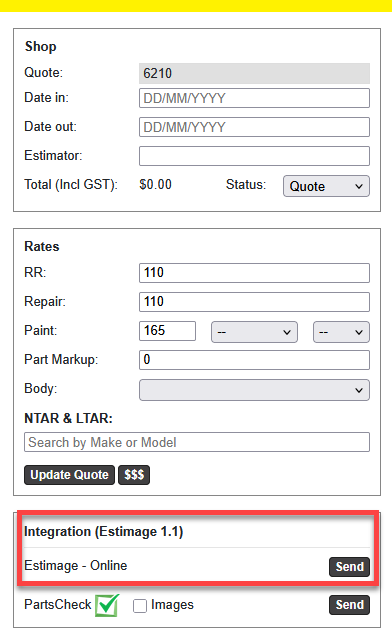
Sending a Quote & Photos
Supplementary QuoteOnce the main quote has been authorised, go to the Quote tab, create a Supplementary Quote, add the required items, and click Send again. Sending an InvoiceOnce the quote has been authorised, return to the Details page, create an invoice, and click Send again. |
Estimage Offline
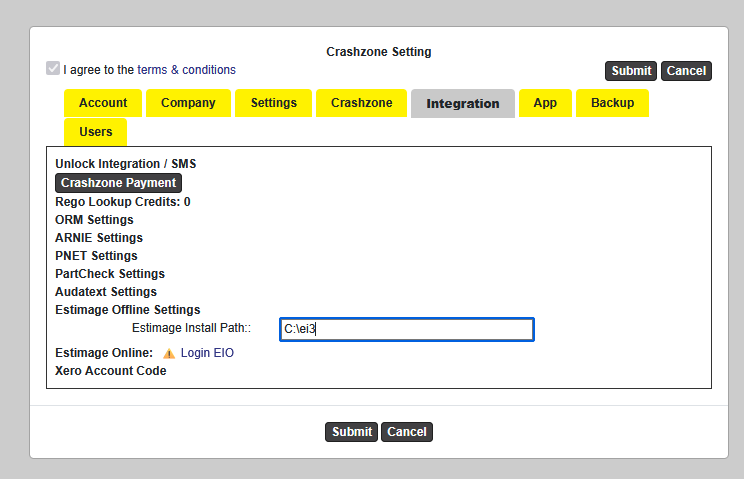
Setup Estimage Offline
Setting > Integration > Estimage Offline Settings > Enter the Estimage installation path.
Example: C:\ei3
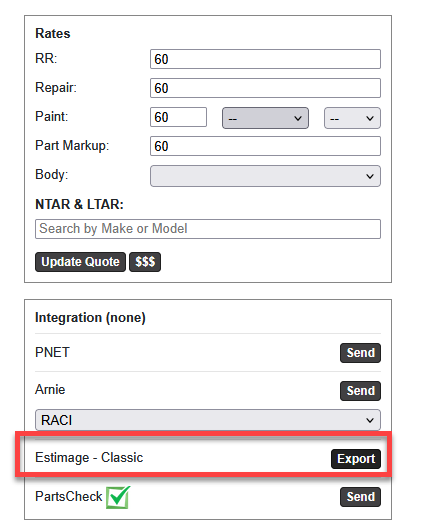
Exporting a Quote & Photos
Supplementary QuoteOnce the main quote has been authorised, go to the Quote tab, create a Supplementary Quote, add the required items, and export the extracted file again. Exporting an InvoiceOnce the quote has been authorised, return to the Details page, create an invoice, and then export the extracted file again. |